
Introduction: Why Sensitivity & HUD Matter More Than Aim
A lot of Free Fire players think:
“Mera aim weak hai.”
But in reality, the problem is not aim —
the problem is wrong sensitivity settings and poor HUD customization.
Even pro players cannot perform with:
Bad sensitivity
Uncomfortable HUD
Poor finger placement
If you want:
Better headshots
Faster reaction
Smooth movement
Consistent gameplay
Then sensitivity + HUD setup is mandatory, not optional.
This complete guide will help you set up Free Fire sensitivity and HUD like a pro player.
What Are Sensitivity Settings in Free Fire?
Sensitivity controls how fast your screen moves when you drag your finger.
It directly affects:
Headshots
Recoil control
Flick shots
Close & long-range fights
Wrong sensitivity = missed shots
Correct sensitivity = smooth, controlled aim
Best Free Fire Sensitivity Settings (Balanced for Most Players)
⚠️ Important: There is no one perfect sensitivity.
This setup is a pro-level balanced base that you can fine-tune.
🔧 Recommended Sensitivity (2025 Pro Style)
General: 90 – 95
Red Dot: 85 – 90
2x Scope: 75 – 80
4x Scope: 65 – 70
AWM Scope: 50 – 55
Free Look: 60 – 65
This setup gives:
✔ Smooth drag shots
✔ Controlled recoil
✔ Better close & mid-range fights
How to Adjust Sensitivity Like a Pro Player
Never blindly copy sensitivity.
Pro Adjustment Method:
Set base sensitivity
Go to Training Ground
Practice drag shots
Adjust +2 / -2 only
Test for 2–3 matches
Signs Your Sensitivity Is Too High:
Crosshair jumps
Over-dragging
Missed close fights
Signs Your Sensitivity Is Too Low:
Slow aim
No headshots
Hard flick shots
Pro rule:
Small changes bring big improvement.
Device-Based Sensitivity Tips (Very Important)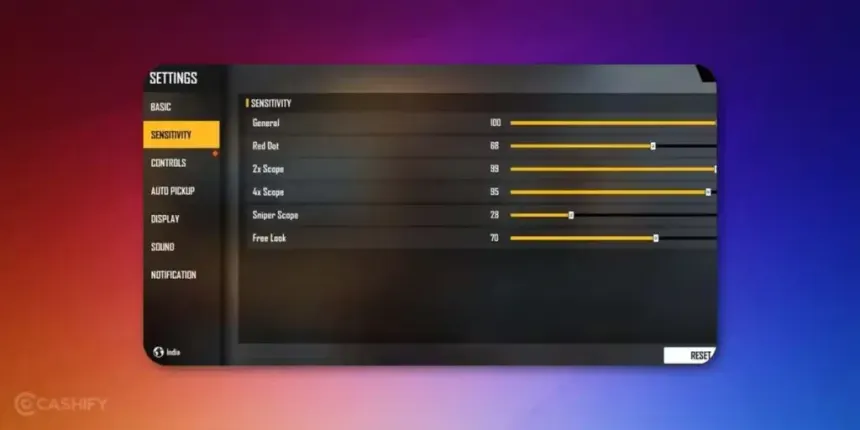
Low-End Devices:
Keep General & Red Dot slightly higher
Avoid very high scope sensitivity
Focus on stability, not speed
High-End Devices:
Lower sensitivity slightly
Focus on precision
Smooth flick control
Device performance matters more than people admit.
What Is HUD Customization in Free Fire?
HUD (Heads-Up Display) controls:
Button placement
Fire button size
Scope location
Movement comfort
Bad HUD = slow reaction
Good HUD = faster gameplay
Pro players customize HUD based on finger movement, not looks.
Best Free Fire HUD Customization (Pro Layout Concept)
Fire Button Setup:
Size: 45–55%
Position: Comfortable thumb reach
Transparency: Medium
Scope Button:
Place near fire button
Easy access for quick scope fights
Jump & Crouch:
Separate, not overlapping
Easy to press during movement
Gloo Wall Button:
Big enough for fast placement
Near thumb zone
2-Finger vs 3-Finger HUD (Which Is Better?)
2-Finger Players:
Simpler HUD
Less clutter
Slower reaction in intense fights
3-Finger Players (Pro Choice):
Faster firing
Better movement control
Higher skill ceiling
If you want competitive growth:
Move to 3-finger HUD slowly.
Common HUD Mistakes Players Make
Avoid these mistakes:
Buttons too small
Overlapping buttons
Copying YouTubers blindly
Ignoring comfort
Changing HUD too often
Consistency matters more than design.
Sensitivity + HUD Combo for Headshots
For better headshots:
Medium-high General sensitivity
Comfortable fire button size
Stable grip
Calm drag motion
Do NOT swipe aggressively.
Headshots are about control, not force.
Training Routine to Master Sensitivity & HUD
Daily Practice Routine (15–20 min):
5 min drag shots
5 min close combat
5 min movement practice
5 min real match testing
Practice beats settings.
Competitive Advantage: Why Pros Keep HUD Simple
Pro players:
Reduce distraction
Improve reaction speed
Focus on gameplay, not UI
Simple HUD = clean decision-making.
Using Competitive Platforms to Test Your Setup
Testing sensitivity only in ranked is not enough.
You need:
Pressure
Skilled opponents
Tournament rules
Platforms like Battlehub FF help players:
Test sensitivity under pressure
Improve reaction time
Build competitive confidence
Playing tournaments exposes real weaknesses faster than casual matches.
Frequently Asked Questions (SEO Boost)
❓ Do sensitivity settings increase headshots?
Yes — correct sensitivity improves control, not magic.
❓ Should I change sensitivity often?
No. Change slowly and stick to it.
❓ Is HUD customization necessary?
Absolutely. It directly affects reaction time.
Final Pro Tips (Important)
✔ Sensitivity supports skill, doesn’t replace it
✔ HUD should feel natural, not fancy
✔ Comfort > Copying pros
✔ Practice > Settings
“The best sensitivity is the one you can control under pressure.”
Final Call to Action
If you want to play Free Fire like a pro:
Fix your sensitivity
Customize your HUD properly
Practice consistently
Test yourself in competitive matches on Battlehub FF
💬 Question for you:
Do you struggle more with sensitivity control or HUD comfort?